Tutorial Six
2026-11-04T23:59
Goals
- Build a 2D cellular automata
- Learn how to write a shader
- Learn how to use frame buffers to pass information to shaders
Getting started
- Start a new repository by accepting the assignment.
- Clone the repository to your local computer (in your shell, type
git cloneand the name of the repository)
I have noticed that Classroom 50 adds a lot of noise to the name of your repositories, which makes it difficult to distinguish between files in a file browser.
You can rename the directory without breaking anything, and I suggest that you do so.
git even provides you a way to do this at the moment when you clone the repository:
git clone <repo address> <new name>Task
For this tutorial we are going to build a 2D cellular automata that abstractly mimics water droplets falling in a puddle.
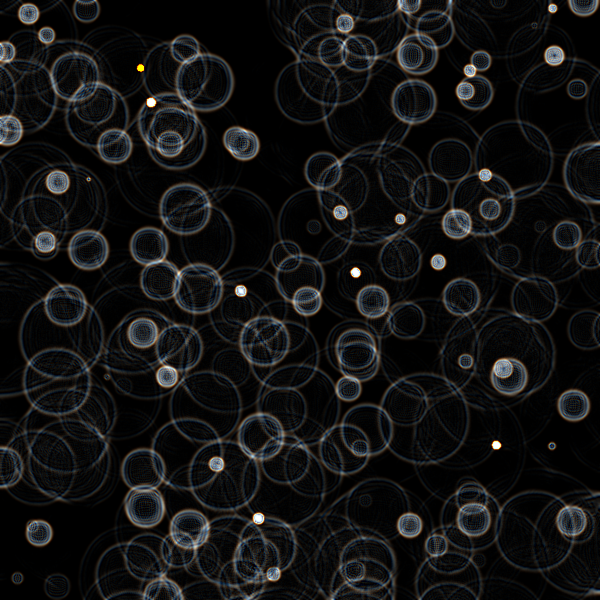
Links to the references for the included functions can be found at the bottom.
This would be somewhat to unreasonably slow (depending on your computer) if we were to attempt to do this kind of pixel level management. So, we are going to turn to our new tool: the fragment shader. We will get a number of advantages here. The primary one is speed. Since we can calculate the next state for all of our automata in isolation, we can really take advantage of the parallelization of doing this on the GPU. The second advantage is that this is actually a little easier to code because we only have to write the code to handle a single pixel.
Our CA design is very simple:
- we are using a von Neumann neighborhood (NSEW)
- state is a continuous value between 0 and 1
- we have one rule: the next state is the current state plus the average of the neighbors minus the previous state
We can’t debug shader code by stepping through it or adding print statements. As a result, I recommend using color if you are trying to debug things. Either output values you are curious about as colors, or use conditionals to output really obvious colors so you know your code is being run.
Part 0: Familiarize yourself with the code
I have given you some starter code which loads in the shader. In the draw function is calls filter and applies the shader to the canvas. Also in sketch.js, you will find my function for checking the shader code for errors, so you will probably want the console open so you can see any issues that arise.
At the moment, the only thing the shader does is make the canvas a nice blue / purple color. That is being done by this line in the shader:
gl_FragColor = vec4(0.3, 0.0, 1.0, 1.0);Recall that when you set gl_FragColor, you are setting the color of the fragment (which you can think roughly as the pixel). We are setting it to a vec4, which is just a four element vector containing RGBA information.
Part 1: Establish our states
Looking at the CA design, you can see that we will generate the next state from a combination of the current state and the previous state. So, for every pixel we will need to be able to store two values.
Our challenge is coming up with a way to store all of this that we can easily pass to the shader on the GPU. We don’t want to pass individual values as uniforms, we want to dump the entire state of the system down at once. We do this by encoding our data in a texture – an image the same size as our canvas. From the shader’s perspective, this is basically a big lookup table. The values in the texture are technically colors, but we can treat them as arbitrary values as well. We will treat them as both.
Our scheme will be to encode the states in the color channels. We will use the red channel for the current state and the green channel as the previous state.
We are going to take advantage of the fact that p5js implements its filters as shaders. When we call filter and pass it a shader, it takes a snapshot of the current canvas and passes it to the shader. In the shader, the contents of the canvas can be found in the variable tex0 (as in “texture 0”).
We will read the current and previous states out of the texture and use them to calculate our next state. We will then set gl_FragColor to a new color that has the new state in the red channel and the old red value moved down to the green channel to become the previous state. (I’ll walk you through it)
Part 2: Implementing the CA
You want to turn your attention to the shader now (shaders/ca.frag).
Reading the state values
You need to add the uniform we are passing down here. These are a new data type: sampler2D. The full syntax is:
uniform sampler2D tex0;Put this with the other uniform declarations.
Now we need to be able to read the values for the current state and the previous state out of the texture.
The location of the current fragment is stored in vTexCoord (which is coming from the vertex shader – that is why it is labeled with varying). This is a texture coordinate, which has two dimensions, each of which ranges from 0 to 1 (you can think of this as mapping to 0 to width in the X dimension, and similar for Y).
To read the value at our location out of the texture, we have another new function: texture2D(), which takes a sampler2D and a vec2. It returns a color (a vec4), and we can extract just the red channel with .r. So, to get the current state, we would do something like this:
float state = texture2D(tex0, vTexCoord).r;Use the same technique to get the previous state out of the green channel.
We also need the current states of the four cardinal neighbors. The question is, how far away is the neighbor? We can get this from another uniform that p5js is setting automatically for us: texelSize. This tells us the distance to the next fragment across the texture. This is another vec2. To find the neighbors, you will want to use this to build new offset vectors that can be added directly to the current position (recall that we can add vectors together with +).
So, for example, the get the neighbor to the north, we would use vec2(0.0, -texelSize.y) as the offset. Putting together all of the pieces that we have seen so far, you could write
float north = texture2D(tex0, vTexCoord + vec2(0.0, -texelSize.y)).r;This add the offset to the current position and then uses texture2D to read the color data at that location. Finally we extract the red channel, because that is all we care about.
Use this to find the current state of the other three cardinal neighbors.
Computing the next state
Our formula for the next state is the current state plus the average of the neighbors minus the previous state. This will propagate the wave.
As we saw, setting gl_FragColor to determine the color of the current fragment is the ultimate objective of the fragment shader. Change the version that I left you so that the next state is in the red channel, the current state is in the green, and the previous state is in the blue channel (we are just pushing everything down a channel).
If you run the code now, you will see… a black screen. We need something to fire off our ripples.
Part 3: Making waves
Add a mouseClicked function. When the mouse is clicked, draw a small red circle at the mouse location into the current state frame buffer. That red will turn up the value of the current state.
Now, when you click you will see ripples radiating out across the space. Now there is no dampening in our system, so that single wavefront will just bounce around and we won’t have our nice little raindrops – it is interesting, but not what we want.
Did the point not appear under your cursor when you drew at mouseX, mouseY?
Remember that we are in WEBGL mode. The origin is in the center for our drawing, but it is not for the mouse. So you will need to subtract out half of the width or half of the height to figure out which coordinate the mouse actually clicked.
Go back to the shader and multiply the next state value by 0.9999 (it doesn’t take much). Now the wave will die off after radiating out a little bit.
To get the look of the example, we need more drops. Go back to the draw() function. Before you call `filter, add a loop that draws a few red dots at random around the canvas. Now you should get a constant sprinkle of raindrops.
Part 4: Explore and play
Conceptually, there is a lot going on here, with the fragment shader, but at the same time, there is fairly little code to write. Take the time to experiment and play around with it. See if you can really understand how all of the parts work.
Challenge
This is optional. I present them to get you thinking about what is going on here and to give you some direction if you get really inspired to dig deeper.
Our output is basically just the raw dump of our state. Because the current, next and previous states are all similar, we generally see activates nodes as some shade of grey. What if we wanted to transform the state into a more interesting visual? We can’t change the colors that we are outputting in the fragment shader because we need that state data for the next cycle.
What we could do is create a framebuffer and do all of this work in the framebuffer to separate the data from the rendering. We could then iterate over every pixel in the framebuffer, read the current state and use that to draw something on the main canvas. Of course, doing that for every pixel would be expensive… Sounds like it could use a second shader – one that takes in the framebuffer as a uniform and uses it to determine the actual colors to display.
Requirements
- the sketch should show the raindrop effect
- the mouse can be used to add additional circles
Finishing up
- Add and commit your changes and push those commit(s) to GitHub.
- Submit your repository to Gradescope
References
Links to the reference pages for the functions you will be using:
background
circle
createCanvas
createFramebuffer
createFilterShader
fill
filter
imageMode
image
p5.Shader