Working with Gradescope
Alongside Classroom 50, we will be using the online platform Gradescope for grading your programming assignments and practical exercises. Gradescope helps us to provide fast and accurate feedback on your work. Programming assignments and practical exercises will be submitted through Gradescope alongside GitHub classroom, and assignment and exam grades will be returned through Gradescope. As soon as grades are posted, you will be notified immediately so that you can log in and see your feedback. You may also submit regrade requests if you feel we have made a mistake. Your Gradescope login is your Middlebury email, and your password can be changed here. The same link can be used if you need to set your password for the first time.
Gradescope e-mails have historically been routed to junk mail folders. We recommend “whitelisting” gradescope.com. And if you don’t receive an expected e-mail check your junk mail folder.
The workflow is detailed below, but in short, after pushing your submission to GitHub, you will submit your repository to Gradescope. Gradescope will run a set of automated tests on your code. You can submit as often as you like with the ultimate aim of passing all of the tests. After the due date, I will read over your submissions, providing feedback, hints and suggestions for revision via line-level comments in Gradescope.
Submitting to Gradescope
- After logging into Gradescope, you will see a set of courses and after selecting CSCI 0467A, a list of open assignments. Select the assignment you are submitting (there may be multiple open assignments at any given time so make sure to choose the correct assignment).
- You should see a submission window like shown below. Follow the steps in red, that is select GitHub submission, the repository you wish to submit, and then the branch (almost always the “main” branch). The first time you submit an assignment, Gradescope will ask for permission to access your GitHub repositories. You will need to agree (but you don’t need to request access to any organizations of which you may be a member, just your individual account).
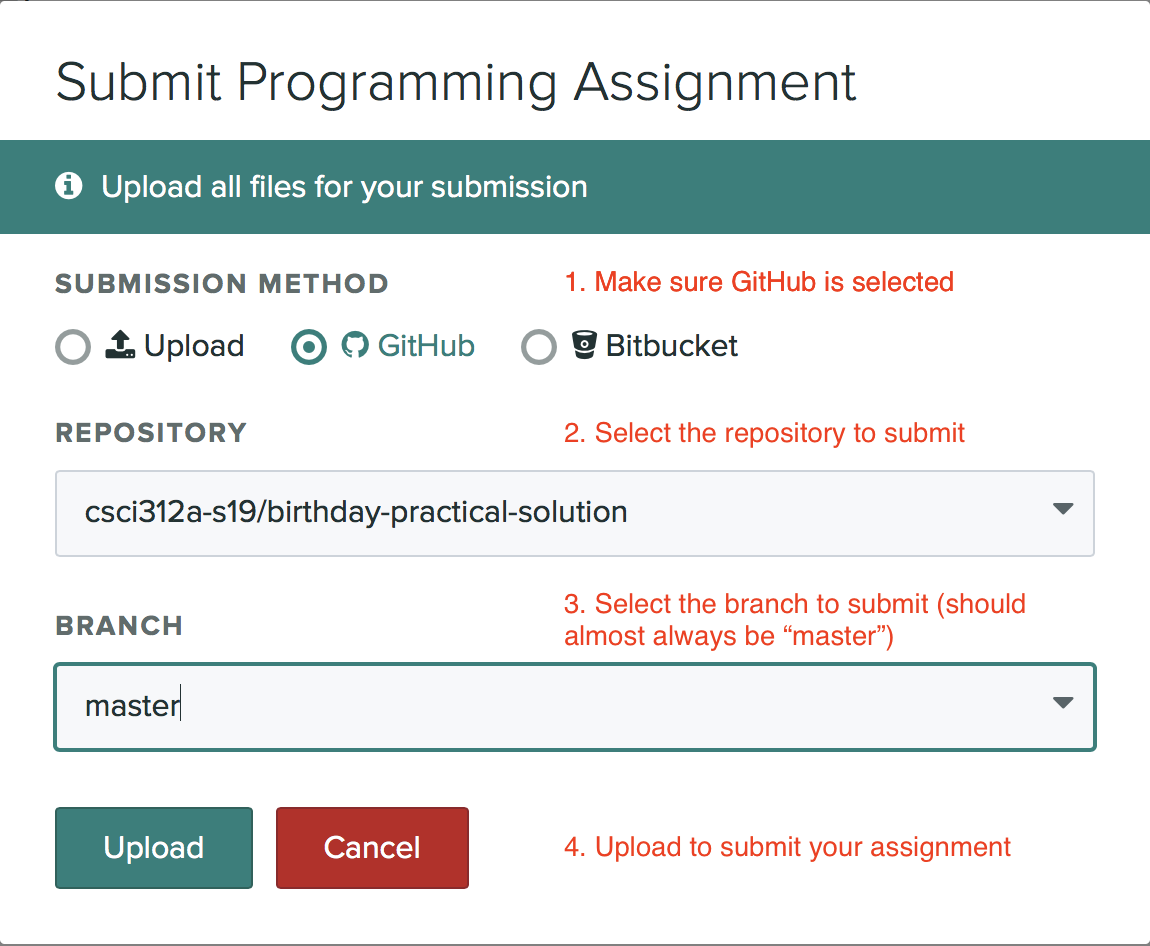
- After you submit, it will take few moment to run the autograder. Currently I am not doing any autograding, so this shouldn’t take long,
Reviewing Your Graded Submission
When your graded submissions are published you will receive an e-mail. As you review your submission click through each section to see which rubric items were selected and any comments on/in your code. You need to click on the Code tab to see where my embedded comments are.