Tutorial Five
2026-10-30T23:59
Goals
- Get a basic framework for working with sound
- Learn about using frame buffers to create visual feedback
- Learn how to use our analysis tools to do some basic beat detection
Getting started
- Start a new repository by accepting the assignment.
- Clone the repository to your local computer (in your shell, type
git cloneand the name of the repository)
I have noticed that Classroom 50 adds a lot of noise to the name of your repositories, which makes it difficult to distinguish between files in a file browser.
You can rename the directory without breaking anything, and I suggest that you do so.
git even provides you a way to do this at the moment when you clone the repository:
git clone <repo address> <new name>Task
For this tutorial, you are going to make a simple piece that incorporates feedback and audio reactivity. It should look something like this:
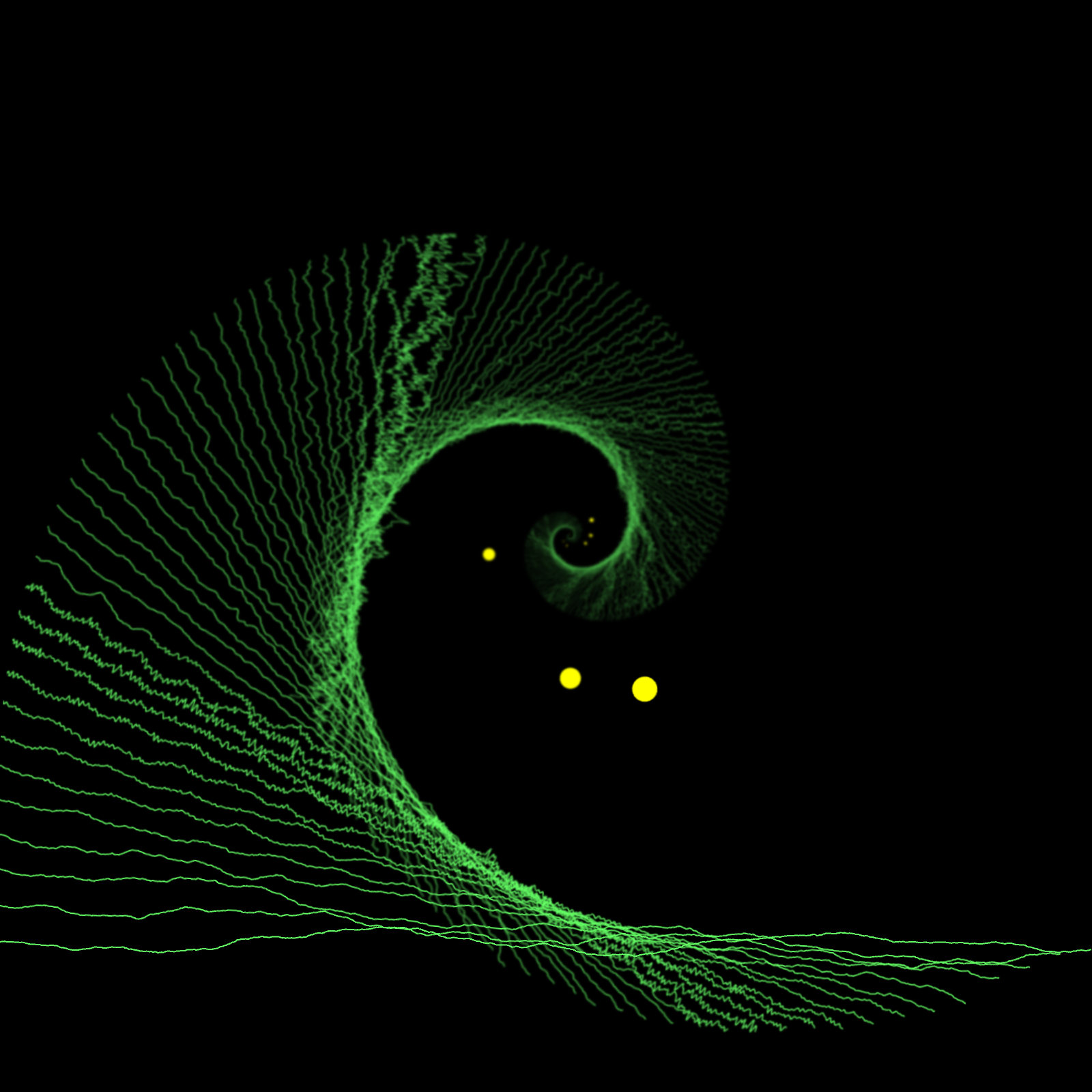
Links to the references for the included functions can be found at the bottom.
The clip I’ve given you to play with is from “Walk on By” by Issac Hayes off of Hot Buttered Soul.
Part 0: Familiarize yourself with the code
In the starter code that I have provided, I have created the Player and loaded it with the track you will be working with. I’ve also provided the basic skeleton for starting and stopping the music with a click and a guard to make sure you don’t draw if there is no sound.
Part 1: Draw the waveform
Create a new global variable called waveform.
In setup(), add
waveform = new Tone.Waveform(1024);This will create our waveform meter. The 1024 means that it will produce 1024 samples every time we request the wave.
You need to connect the waveform to the player. Before player.toDestination(), add
player.connect(waveform);In the draw() function (inside the conditional), you are going to call waveform.getValue() to get the waveform. This returns an array of 1024 samples with values in the range \([-1, 1]\).
Set the stroke color (my color was (100, 255, 100)) and turn off the fill.
Use beginShape() and a loop to draw all of the points.
The x coordinate will come from the index of the sample in the list. Use map to make sure the wave fits the canvas exactly.
The y coordinates will come from the samples. Map the amplitudes to \([-100, 100]\). Of course this will put half of the wave offscreen. Use translate to move the wave down near the bottom (leave about 10 pixels of padding).
Run it now. It should look like the demo I showed in class. Interesting, but not really interesting.
Part 2: Feedback with framebuffers
To make this more interesting, we are going to add feedback. The idea of feedback is to take the output, loop it back around and add it as input for the next loop. In truth, from some perspective, when we don’t use background we could think of that as a form of feedback – in every loop the output is the sum of the current drawing and everything that came before. This approach is a little limited, however. Feedback is more interesting when we manipulate the old output in some way before feeding it back to the new drawing.
Framebuffers
To implement this, we are going to introduce the framebuffer. Technically, the framebuffer is the memory on your computer where pixel data is stored for output to your display device. p5.Framebuffer is a class that provides access to a dedicated portion of this memory for drawing. We can use the framebuffer in a similar way to the way we used p5.Graphics – we draw onto it instead of the canvas, and then if we want to see the result on the canvas, we use image to display it. The primary differences are that the framebuffer is much faster and we use a different approach for drawing into it.
To use the framebuffer, we need to be in WEBGL mode, so add WEBGL as a third argument to createCanvas just like you have previously for 3D drawing. When we switch to WEBGL the origin moves to the center of the canvas, so you will need to update the positioning of your waveform.
Now we can move the drawing into the framebuffer. Create a new variable called current. In setup() initialize current with
current = createFramebuffer({ format: FLOAT });Notice that we did not provide a size. Our framebuffer is now the same size as the canvas, though it can be resized.
To draw into the frame buffer, add current.begin() the code that draws the content and current.end() after it. For us, we want everything from background(0) to the end of drawing the waveform (notice the difference from drawing into a graphics context where we had to preface every call with the name of the context).
To see the contents of the framebuffer, you need to place an image on the canvas. Change the imageMode to CENTER and then place the framebuffer in the middle of the canvas. Everything should look the same as before.
Feedback
The way we add feedback is to have two framebuffers. One is the framebuffer we are drawing into (current), while the other holds the drawing from the last time we drew (we will call that prev). If we add the contents of prev to current, we will get feedback. To make it more interesting than just not erasing, we want to transform prev in some way that diminishes it before we draw (scale it, fade it, etc…).
So the steps are
- draw a transformed version of
previntocurrent - draw new content into
current - use
image()to drawcurrentonto the canvas - swap
currentandprevso thatprevholds the latest drawing andcurrentis ready to be reused
There is some flexibility here. The swap of the buffers can come at the top or the end of the process. If we make the old contents semi-transparent or change the blend mode, we can reverse the order of placing the previous contents in current and adding the new drawing. For now, however, you should keep this order.
Create a new variable called prev and initialize it the same way that you did current.
Before you draw the waveform (but after current.begin()), add a push() and pop(). Add translate(0, -1) after the push, and then use image() to place prev into current.
After your drawing flip the buffer using this cute JavaScript trick:
[current, prev] = [prev, current];If you run this now, you will see the old waveforms moving up the screen.
We are going to add two more effects. Scale by .98 and rotate by 0.05. Now the old waveforms will spiral into the distance. You should experiment with those values to see what other effects you can get. Feel free to leave any interesting results you get.
Feedback is a powerful effect, and I think it works particularly well for audio work since reactions are so transitory. You just have to think very carefully about what is in prev and how you will use it to make the next image.
Part 3: Beat detection
This current visual is using continuous data from our analysis tools. The other thing that we can do is use features of the sound as a trigger to make changes. An obvious instance of this is beat detection.
Ideally, what we would like to do is to detect moments when we hit the peak of a rapid rise in amplitude. Unfortunately, this is very challenging because we can’t know that we are at the peak until we are past it. We can do this with static analysis, but doing it live doesn’t work. So, we need to guess that when we see a rapid rise that it indicates the start of a beat. At the same time, we want to avoid triggering again for the same rise if the signal is continuing to climb. As a result we will decide that we have a beat if three things are true:
- we have some minimal rise over the last sample
- we are some minimal threshold over the average amplitude over a sliding window of past values
- enough time has elapsed since the last beat we detected
Build the detector
At the top of the file, create three constants:
RISE_DB- this will be the distance we need to rise before the next sample. Start this at 1THRESHOLD_DB- this is the amount over the window that we need to be to consider this a beat. Start this at 2MIN_INTERVAL_MS- the minimum amount of time to wait before we will detect another beat. Start this at 150
Create a class called BeatDetector.
The constructor should take one argument: meter, which will be a Tone.Meter.
In the constructor, create three properties
this.meter- set this to themeterargumentthis.lastBeat- set this toperformance.now()(which hopefully you recall is the current time in milliseconds)this.window- this will be our sliding window of past samples. Initialize it to an emptyArraywith 30 elements :new Array(30).fill(0)
Create a method called detectBeat(). This does the hard work of figuring out if we are on a beat or not.
Start by getting the current energy with this.meter.getValue().
Next, calculate the average energy in the window with this.window.reduce((a, b) => a + b, 0) / this.window.length
Calculate if there has been enough change since the last sample (RISE_DB). The last sample should be the last entry in the window. Stare the true / false value in a variable.
Calculate if there has been enough rise over the average of the window (THRESHOLD_DB). Store this in another variable.
Calculate if the current time minus the stored time is more than MIN_INTERVAL_MS. Store that in a variable.
Set a Boolean variable called isBeat to the result of ANDing together those three values.
If there was a beat, then update this.lastBeat to the current time.
We need to add the new sample to the window and remove the oldest one. You can use this:
this.window.push(isFinite(energy) ? energy : -60);
this.window.shift();
The check for isFinite is to make sure we don’t store any -Infinity which we sometimes get when the sound is silent.
In your draw function, draw a circle when the beatDetector detects a beat. I drew a small one a little below the middle of the screen.
Connecting the detector
The final step is to connect the detector to a source of information. For that, we want a Tone.Meter. Add the following before player.connect(waveform); (we will keep the connections together).
const meter = new Tone.Meter({ smoothing: 0.8 });Instantiate your detector and pass it the meter.
The meter needs some signal, so add player.connect(meter); after player.connect(waveform);.
Try it out. This sort of works, but we can do better. In the clip I’ve given you, there is a persistent hi-hat keeping the beat. This is a relatively high frequency sound. There are a couple of ways that we could get at this, but we are going to use a high-pass filter. A high-pass filter trims out (most) sound information below a certain frequency. This is one of several different kinds of filter that we can make with Tone.Filter.
Add the following to your setup before you create your meter:
const filter = new Tone.Filter({
    frequency: 9000,
    type: "highpass",
    rolloff: -48 // Steep drop-off (-48dB/octave) to eliminate mid-range bleed
});
Change your connections so the player connects to the filter and then the meter connects to the filter (in other words, we are inserting the filter between the player and the meter).
If you want to hear what the filter is doing, you can change player.toDestination() to filter.toDestination(). This is a very cool tool for debugging your signal chain. Try changing the frequency of the filter and listening to the difference.
You should now have circles being created roughly on the beat. There are a lot of parameters that control the accuracy and sensitivity of detector. You can try tuning some to see how they affect the detection. One of the things you will find is that universal detectors are hard and you will probably end up tuning for a particular piece.
I am ignoring a pretty important option here. If we have the entire file ahead of time, we could perform a static analysis of the file be far more accurate about our peak detections. However, we are going to focus on doing the analysis live for the time being.
Requirements
- the sketch should display the waveform
- the framebuffer should be used to create a feedback loop that spirals the waveform
- there should be a beat detector
- the beat detector should be connected through a filter and have reasonable parameters
- the beat should be displayed on the canvas
Finishing up
- Add and commit your changes and push those commit(s) to GitHub.
- Submit your repository to Gradescope
References
Links to the reference pages for the functions you will be using:
background
beginShape
circle
createCanvas
createFramebuffer
endShape
fill
image
imageMode
mousePressed
line
push
pop
rotate
stroke
translate