CS 467 - Tutorial Three
Due: 03/07/2023
Goals
- Learn how to load images
- Learn the details of the
imagefunction
Prerequisites
- Accept the assignment on our Github Classroom.
- Clone the repository GitHub classroom creates to your local computer (in your shell, type
git cloneand the name of the repository)
Task
For this tutorial, you are going to make a randomized photo collage piece.
The general idea is that we will take an image, break off small pieces of it, and then paste them back together at somewhat different scales to create collage-like effect.
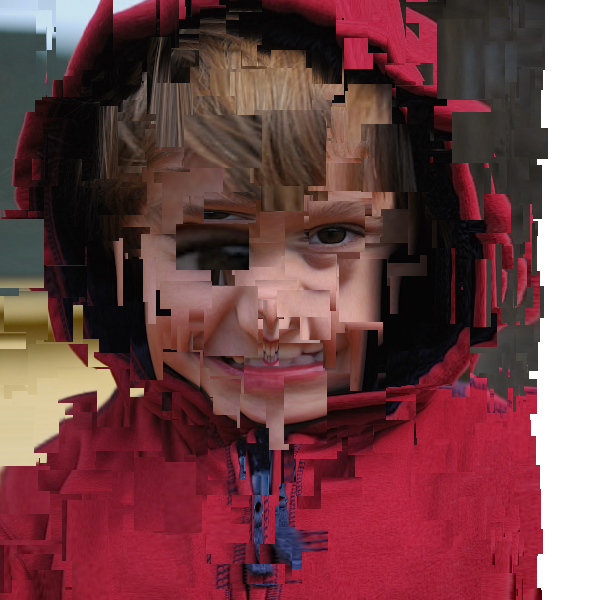
Links to the references for the included functions can be found at the bottom.
Part 0: Loading an image
On the face of it, loading an image into p5.js is straightforward. We have a function called loadImage and it returns a p5.Image object which we can display with the image function you have already used.
However... there is some subtlety here. The problem is that loading images is asynchronous, which p5.js doesn't fully come out and acknowledge.
What do you mean by "asynchronous"
One of the core principles of good UI/UX design is to never let computation cause the application to hang. The user always wants applications to respond to input, even if the application can't do anything until a computation completes. So, for long-running tasks (like loading an image) the actual work is passed to a different thread of execution. The command itself looks like it finishes instantly -- the work just hasn't been done yet. This releases control back to the main event loop so user input can be handled while the system waits for the long running task to complete.
If you read the documentation, you will see that there is an optional successCallback parameter, which is a function to be called if the image loads properly (this is a common pattern for dealing with asynchronous operations).
The second detail has to do with how we specify the image. One approach (which the documentation uses) is to specify the path to the image in the code. note that the assumption here is that the image has been placed somewhere where the server can access it -- this is not a path to a local file on your computer.
Our approach will be to allow the viewer of the site to specify their own image. We are going to use createFileInput() which adds a "Choose file" button to the page. Since this just creates a control, we will need a second callback function to handle the file once the user has added one.
So, the flow will be
- the user clicks the button
- a file dialog comes up and the user picks an image off their drive
- your file handler function is called
- you will check if the file is an image
- if it is, you try to load it
- if the load is successful, your callback is called, and you assign the image data to a variable
Okay, enough background, let's get into it....
Part 1: Display a user's image
Create a new variable called img at the top of the file.
Writing the file handler
Write a new function called handleFile(file) (there is nothing special about this name, just be consistent). This will be our callback when the user selects a file.
The file argument has a parameter called type. Check if this is "image".
If this is an image, then call loadImage() and pass file.data as the first argument. For the second argument you need to pass in a callback function. This is a good place for a short anonymous function. It receives the p5.Image object as an argument and you want to save it in your img variable.
imageData => { img = imageData;}
Create the file chooser
Now we are ready to create the file chooser with createFileInput (do this in setup). Pass in the new function as the first argument.
const input = createFileInput(handleFile)
You can then position it with input.position(). Put it down below the canvas.
Drawing the image
To display the image, we can use the same image function we used for the offscreen graphics contexts. Just place the image at (0,0).
Initially, img will be undefined since we don't have an image yet. Add an if statement that checks if you actually have img before you try to display it.
Try it out. You should be able to load an image and display it. Don't worry right now about size. If the image overflows the canvas, just let it. If your image is significantly larger than the canvas, consider finding a smaller image or shrinking it (images have a resize function that can do this which yuo could apply in the image loading callback).
Part 2: The cutup
The image function
Now it is time to explore the full capabilities of the image() function.
The function takes up to twelve arguments. We will actually stick to the first nine.
The key to understanding these is this picture from the documentation:
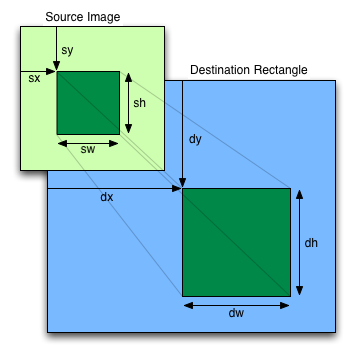
There are two important takeaways here:
- the size of the image and the space it takes up when displayed can be different
- we don't have to display the entire image
So, the dx, dy, dWidth, and dHeight arguments control what you place on the canvas. The location is set by (dx, dy), while dWidth and dHeight control how big the piece of the image you are displaying is.
The next four argument control how we sample from the image data. If we leave them off, we get the whole image. otherwise we get a patch at (sx, sy) that is sWidth by sHeight.
Making patches
Here is the process:
- pick a random location from the image
- pick a random width and height to sample
- pick a random width and height for the display of the sample
- display the sample at the same location on the canvas as it was in the source image
If the size of the displayed patch is the same size as the sampled patch, then as we looped, we would just construct the original image in pieces. By letting the two be different sizes, we will get something that bears a resemblance to the original image, but strangely distorted.
So, create six variables and set them to random values.
Use the random() function for this. You can call it with two numbers to generate a number that is inside of the range.
For the position, make sure that the location is within the image. You can get the image's dimensions with img.width and img.height.
For the patch sizes, start with a minimum size of 10 and a maximum of 80.
Once everything is working, feel free to experiment with the patch sizes. Small patches and a big difference between the patch sizes will create more abstract forms.
There are two interesting extensions you could add to this tutorial.
- Add sliders to allow the user to control the range of the patch sizes
- Rather than making the patch sizes totally random, you could make the destination patch size dependant on the source patch size, either forcing them to be close or by forcing them to be very different.
Because the image patches will be all sorts of odd sizes, I think it makes sense to change the image mode to CENTER so that the displayed patches are as close as possible to the original location.
Plug all of these into image(). You should now see random patches popping up around the canvas. Sometimes these will be recognizable pieces, sometimes it will be fragments of color. Sometimes they will be hugely magnified, other times they will be shrunken.
As you let it run, you should start to see the essence of the original image start to come through.
Part 3: Refinement
Speed up
This is not a particular fast process. We can speed this up a little bit (and learn a little bit more about the render loop at the same time).
Each time the draw() function is called it takes time to set it up behind the scenes and display the result. Doing more during the function will speed things up.
Add a for loop around your code in the draw function (inside of the conditional). Have it repeat your random placement 50 times. You should see a big jump in speed. Experiment a little. What happens as yuo turn that up and down. Is there a point where the speed tops out?
Pause and appreciate
One problem with dynamic pieces like this is that they are constantly in motion, and if something interesting happens, it is ephemeral.
To address this you are going to add a little helper function that will pause the loop on demand.
In the last tutorial you learned how to listen for keys being typed.
Create a new one in this sketch. Listen for the letter "p" being typed.
If it was, use isLooping() to check if the draw function is in loop mode. if it is, call noLoop() to stop it. If it isn't, then call loop() to restart it.
Now you can stop the process when you see and interesting arrangement appear (or, if you have the speed cranked up, to experience different static compositions).
Finishing up
Commit your changes to git and push them back up to GitHub. I will find them there.
References
Links to the reference pages for the functions you will be using:
createCanvas
createFileInput
image
imageMode
isLooping
key
keyTyped
loadImage
loop
noLoop
random
Last updated 02/28/2023